Form Builder Guide
Learn how to build custom B2B registration forms with the drag-and-drop form builder.
1. Form Builder Overview
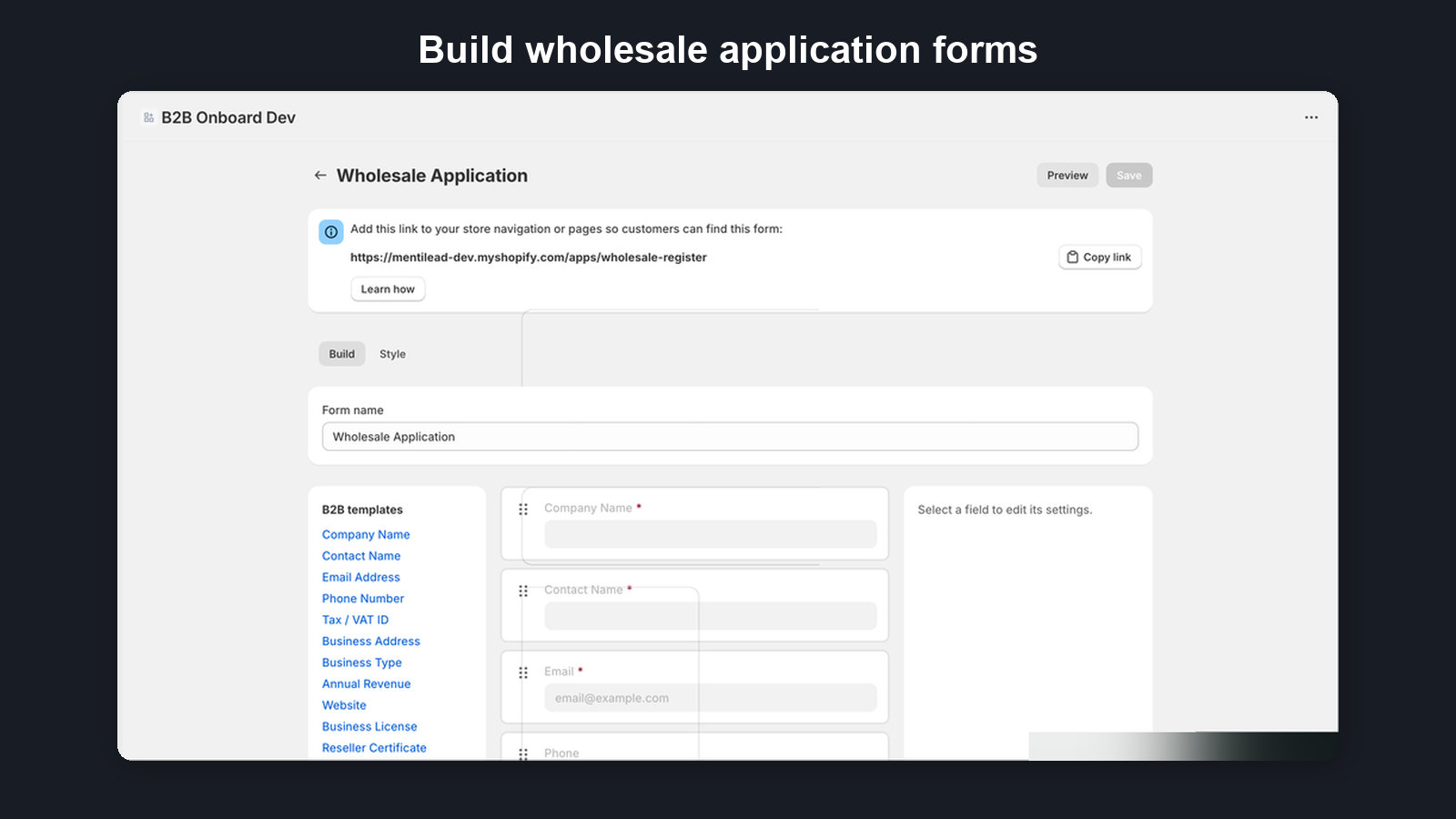
The form builder uses a three-column layout designed for intuitive form creation:
- Field Palette (left, 200px) — Browse available field types and B2B templates, plus a From your Shopify metafields list of your unmapped metafield definitions that adds a ready-mapped question (the four customer fields the app fills itself on approval are left out of that list, but stay available in the field editor). Click or drag a field to add it to your form.
- Sortable Canvas (center) — Your form takes shape here. Drag fields to reorder them, click to select and edit.
- Field Editor Sidebar (right, 280px) — Configure the selected field's label, placeholder, validation rules, and more.
Drag-and-drop functionality is powered by @dnd-kit for smooth, accessible interactions.
2. Field Types
B2B Onboard supports 14 field types to cover every B2B registration scenario:
| Field Type | Description |
|---|---|
| Text | Single-line text input |
| Email address with validation | |
| Phone | Phone number input |
| Textarea | Multi-line text for longer responses |
| Select | Dropdown with predefined options |
| Multi-select | Multiple choice selection |
| Checkbox | Yes/no toggle |
| File | Document upload (trade licenses, certificates). Applicants always see the accepted file types and maximum size under the field, a file that is too large is refused as soon as it is chosen, and if the form comes back for a correction they are asked to attach the file again. |
| Address | Structured address fields — State / Province is required only for countries that have regions (US, Canada, Australia…) and is labelled "(optional)" everywhere else. The block adapts to the selected country: Country comes first; Denmark, Sweden, Germany, the Netherlands and most of Europe show the postal code before the city and no State line (countries with regions, such as Italy and Spain, keep a region dropdown after the city); the UK, Ireland and New Zealand show the postcode after the city; the US, Canada and Australia show city, state and ZIP — with example placeholders in the local format. Nothing to configure. A second Address field can be marked Used as: Billing address in the field editor; on approval it becomes the company location's billing address instead of copying the delivery address. Pair it with a checkbox ("Billing address is different from delivery address") and a rule that hides the block until it is ticked. On a form with an always-shown business address (marked as billing) and an optional delivery address, an application whose delivery address is left empty ships to the billing address: it becomes the location's shipping address too, so the company lands in the right market. Only one Address field can be the billing address, and at least one must stay the delivery address — the editor and Save both enforce this. Each Address field also has Leave the contact’s name off this address in Shopify: when ticked, the company location’s address that field fills is created without the applicant’s first and last name (useful when an ERP or accounting system that reads the address breaks on a person’s name). The phone number stays on the address, and the name is still saved on the Shopify customer. Companies created by a CSV import always keep the name on the address. |
| Tax / VAT ID | Tax or VAT registration number, with live format hints and automatic verification (VIES, HMRC, ABR, NZBN, Brønnøysund). A form can have only one Tax / VAT ID field. To collect a second registration number, add a Text field and map it to a metafield. One field can still speak to every market. In the field editor, tick Adapt wording to the applicant's country and the placeholder follows the country the applicant enters in the address block — a German buyer sees a German VAT example, an Australian buyer an ABN one. The label and help text keep the wording you wrote until you set them per country yourself: we do not invent tax guidance for you. To do that, click Customize wording per country, add the country (or the European Union (EU) group, or Other for everywhere else) and fill in any of Label, Placeholder and Help text. Each box shows in grey what it would otherwise use — for Placeholder that is the built-in example for that country, for Label and Help text it is your European Union (EU) or Other wording when the country falls under one of them, otherwise the field's own wording — so leave a box blank to keep it. Every country you have not set up yourself uses the Other wording (EU countries use the EU group), while still getting its own built-in placeholder example. The wording on the field itself is what applicants see before they pick a country, so keep it neutral (for example "Tax / VAT ID"). The Country / Region setting above is separate: it decides which registry the number is checked against, not what the field says. Optionally, tick Block tax IDs that fail the country's format check to stop applicants with a mistyped VAT or business number, checked offline against the official format and check digit. It covers EU, UK, Norwegian, Swiss, Australian, Canadian and Indian numbers. A number typed without a country prefix is checked against every country the applicant entered in the form's address blocks, and blocked only when it fails the check for all of them. The countries we can check are Sweden, Norway, Denmark, Finland, Australia, Switzerland, India and Canada; an address in any other country (the US, for example) lets the number through. The live registry check never blocks. |
| Repeating group | Repeatable section of sub-fields applicants add multiple times (e.g. trade references) |
| Heading | Section divider with title |
| Paragraph | Instructional text between fields |
| Step break | Splits a long application into ordered steps with a progress indicator and Next/Back navigation (add two or more to enable the multi-step layout) |
3. B2B Templates
The field palette includes pre-built templates for common B2B registration scenarios. Each template adds one field to your form with a single click — a Company Name field, an Email Address field, a Tax / VAT ID field, and so on — already set up to send its answer to the right place in Shopify when you approve an application. A template that is already on the form is greyed out in the list.
Templates are designed around real-world B2B use cases such as wholesale applications, reseller registrations, and trade account requests. You can customize any template fields after adding them to the canvas.
4. How answers reach Shopify
When you approve an application, B2B Onboard creates the Shopify customer and company from the answers. A field added from a B2B template is linked to one Shopify detail; select it and its Field settings panel shows a locked badge such as Shopify: Company name. This table shows where each template’s answer goes:
| Template | Where the answer goes on approval | Must be on the form |
|---|---|---|
| Company Name | The company’s name in Shopify, and the company on the customer’s address | Yes |
| First and Last Name | The customer’s first and last name, and the company contact | Yes (this or Contact Name) |
| Contact Name | The customer’s first and last name (split from the full name), and a contact name metafield on the customer | Yes (this or First and Last Name) |
| Email Address | The customer’s email address | Yes |
| Phone Number | The customer’s phone and the company location’s phone | No |
| Tax / VAT ID | The company location’s tax registration ID, automatic verification, and the customer’s tax ID metafields; the customer’s VAT number metafields unless the answer is known not to be a VAT number | No |
| Business Address | The company location’s shipping address and the customer’s address | No |
| Website | A website metafield on the customer | No |
| Business Type | A business type metafield on the customer and company | No |
| Annual Revenue | An annual revenue metafield on the customer | No |
| Additional Notes | The customer note | No |
| Business License, Reseller Certificate, Tax Exempt Certificate | The application’s documents (certificates go to tax exemption review) | No |
| Legal company name | Not sent to Shopify — compared with the business name on the buyer’s tax certificate, alongside Company Name | No |
| Email Marketing (adds the checkbox “Yes, send me news and offers by email”) | When the buyer ticks it, the customer is subscribed to email marketing in Shopify on approval | No (can’t be made required) |
Three templates are mandatory: Company Name, Email Address and a name (First and Last Name or Contact Name). Shopify requires a company name to create a B2B company and an email address for its contact; the name is how B2B Onboard creates a customer you can recognise. Once the form is saved, these fields can’t be deleted — even if another field on the form asks for something similar, such as an invoice email address — and Email Address and the name field can’t be made optional. One you have just added and not yet saved can still be deleted.
Email marketing consent: the Email Marketing template adds a checkbox labelled Yes, send me news and offers by email. Privacy law (such as GDPR in the EU and the UK) requires consent to marketing to be an active choice, so the checkbox is always unticked and can never be made required. When the buyer ticks it, approving the application subscribes the Shopify customer to email marketing (single opt-in, dated when the application was submitted); if they leave it unticked, nothing changes. B2B Onboard never unsubscribes anyone. The applications CSV export has an email_marketing_consent column (yes / no, empty when the form didn't ask) — together with the submission date it is your record of who consented and when.
What you can change: rename a template field, translate it, change its help text or width, and move it anywhere on the form — its answer still goes to the same place. What you can’t do is point it at a different Shopify detail. For an optional template field, delete it and add the right template instead; the mandatory fields (Company Name, Email Address and the name field) can’t be deleted.
Plain fields: a field you add from the field palette (Text, Dropdown, Checkbox and so on) is stored with the application and shown to you when you review it, but it reaches Shopify only through a metafield binding that writes the answer to one of your own customer, company or company location metafields.
Tax ID and VAT number on the customer: the Tax / VAT ID answer goes to the customer’s tax ID metafields (b2b_onboard.tax_id and custom.tax_id). The VAT number metafields (b2b_onboard.vat_number and custom.vat_number) hold the same answer unless we know it is not a VAT number: a buyer in the US, Canada, Australia or New Zealand, an Australian ABN, a New Zealand NZBN or a Canadian business number, or a Norwegian organisation that is not VAT-registered. In those cases only the tax ID metafields hold it, so invoicing apps don't print it as a VAT number. Customers approved earlier keep the VAT number they already have.
Best practice — trade name: if your buyers trade under a different name than their legal one, Company Name can hold the trade name — the name you want to see on the Shopify company — as long as you also add the Legal company name template to the form. Buyers fill it in only when their registered name differs. The tax certificate check then accepts a certificate in either name, so a resale certificate issued to the legal name is no longer flagged just because Company Name holds the trade name. The legal company name is stored with the application and shown when you review it; it is not written to Shopify.
“Link this form’s fields to Shopify”: forms built before template fields were linked may show this banner above the form. Your form keeps working exactly as it does today until you link them. For each Shopify detail, choose the field that collects it and click Link; the field is then locked and shows its badge in Field settings. Save any unsaved changes first. Linking can’t be undone, and if a detail has no matching field the banner asks you to add that template from the left.
5. Editing Fields
Click any field on the canvas to open the editor sidebar on the right. From here you can configure:
- Label — The field name shown to applicants
- Placeholder — Hint text displayed inside the empty field
- Required / Optional — Whether the field must be filled out before submission
- Validation rules — Open Show validation on a Text, Email, Phone or Text area field to set a Min length, a Max length, a Pattern (regex) and the Pattern error message the applicant sees when the value does not match. On a multi-step form these checks run when the applicant clicks Next as well as on submit, so they can never carry a bad value into a later step. The pattern must be one browsers accept: inside a character class
[ ]you must escape a literal hyphen as\-(write[\d\s\-], not[\d\s-]) — the field editor warns you before you save if a pattern would be rejected.
For select and multi-select fields, you can also manage the list of options directly in the sidebar. Each option has three fields: Label (what applicants see), Value (what gets stored), and an optional Customer tag. When an applicant selects an option that has a Customer tag and their application is approved, that tag is automatically applied to their Shopify customer account — alongside the baseline B2B Approved tag and any Approved tags configured in Settings → Customer Tags. Tags are limited to 40 characters and cannot contain commas.
6. Drag-and-Drop Reordering
Drag fields on the canvas to reorder them. Visual indicators show exactly where the field will be placed when you release it. This makes it easy to organize your form layout without removing and re-adding fields.
You can also drag new fields from the field palette directly to a specific position on the canvas.
7. Saving and Preview
Click the Save button to persist your form changes. The entire field configuration is saved atomically, so your form is always in a consistent state.
Use Preview mode to see exactly how your form will appear to customers on your storefront. Preview renders the form using the same layout and styling that applicants will see.
8. Submission Settings
Each form has submission settings you can configure in the form editor:
- Terms and conditions — An optional checkbox requiring applicants to agree to your terms before submitting. You can enter your own terms text, including links to your policies (for example
<a href="https://your-store.com/policies/terms-of-service">Terms of Service</a>) and line breaks with<br>. Links open in a new tab, so applicants never lose a half-filled form; other HTML is removed. - Ask about trade credit interest — An optional "I'm interested in trade credit or net terms" checkbox shown below your form fields. Off by default — turn it on per form when you want to gauge interest; existing forms are unaffected. Ticking it is optional for the applicant and never blocks submission, and it simply records their interest — no credit application, decision, or terms are created at registration. After you approve the application, the new company's Credit card shows a "Requested credit" prompt so you can send them a credit application link. See the Credit Applications guide.
- CAPTCHA protection — Enable Google reCAPTCHA v3 to protect your form from spam and bot submissions. This runs invisibly in the background without requiring applicants to solve puzzles. A submission that reCAPTCHA scores as likely automated is not rejected: it is held in Quarantine (Applications → Quarantine), where you can restore it if it's genuine. A missing or invalid check still asks the applicant to try again. Note: When enabled, Google reCAPTCHA may set third-party cookies. See our FAQ for details.
- Auto-approval rules (Growth plan and above) — Automatically approve applications that meet specific criteria. Two rule types:
- Tax ID verified: auto-approve when the submitted number is verified against its official register — an EU VAT number via VIES, a UK VAT number via HMRC, an Australian ABN via the ABR, a New Zealand NZBN via the NZBN register, or a Norwegian organisation number via Brønnøysundregistrene. The Norwegian rule additionally requires the company to be MVA-registered
- Email domain allowlist: auto-approve when the applicant's email matches one of your allowed domains
9. Confirmation Page
Customize the page shown to customers after they submit their application. Each form has its own confirmation page settings, configured in the form editor's Confirmation page section. The confirmation page uses the same Style settings as the form — fonts, colours, corner radius and background — so the experience stays on-brand after submit.
- Confirmation heading — The main heading displayed on the confirmation page. Defaults to "Application Submitted".
- Success message — Shown below the heading. Customize this to match your brand voice. Defaults to "Thank you for your application. We will review it shortly."
- "What happens next" steps — A numbered list of up to 3 steps shown below the success message. Each step has a title and an optional subtitle. Use these to set expectations about your review process.
New forms come with three default steps:
- We review your application
- You'll receive an email with our decision
- Next steps will be shared in the approval email
You can add, remove, and reorder steps using the arrow buttons. If you remove all steps, the "What happens next" section is hidden from customers entirely.
Call-to-action button — Optionally add a CTA button to the confirmation page. Check "Add a call-to-action button" to reveal the button text and URL fields. When enabled, a full-width primary button renders above the "Back to store" link, guiding customers to a specific page (e.g., your catalog or a welcome page). When no CTA is configured, the existing "Back to store" link renders unchanged.
Translations — All confirmation strings (heading, success message, "What happens next" steps, CTA button text, and the terms-acceptance checkbox label) are translatable through the Manage Translations page. Default strings — including the CTA text "Continue shopping" and the default terms label "I agree to the terms and conditions" — ship with translations for all 41 built-in locales, as do storefront chrome strings ("Back to store", submission-limit and form-unavailable banners, and the client-side validation error). The translations page marks any field pre-filled from the pack with the hint "Auto-translated from language pack". Type your own value to override the default; clear the field to restore the auto-fill.
Using your own page instead — If you show the form through the B2B registration form block in your theme, the block has an optional Thank-you page setting. Pick one of your own Shopify pages there and a successful applicant is sent to that page instead — your full theme, designed however you like. The confirmation settings on this page then no longer apply to that form, so configure one or the other, not both. Leave the block setting blank and everything above works exactly as described. See the Getting Started guide for where the setting lives.
Tip: The global review timeframe setting in Settings can also appear as a step subtitle. For more control, configure steps directly on each form.
10. Reapplication Policy
Control whether a customer can submit a second application while their first one is still waiting for review. This is configured per-form in the form editor's Reapplication policy section. Three options are available:
- Allow reapplications (default) — Customers can resubmit applications at any time.
- Allow one application per 30 days while waiting — While an earlier application from the same email is still waiting for review, a new one is blocked until 30 days after it was submitted. Once you approve or reject it, the customer can apply again.
- Block duplicates while an application is waiting — While an earlier application from the same email is still waiting for review, a new one is blocked. Once you approve or reject it, the customer can apply again — for example after you reject with a note asking them to fix something.
"Waiting" means the earlier application, on any of your forms, is pending, in review, waiting on more information from the applicant, or held on your plan limit. Approved and rejected applications never block. For both limits, spam held in Quarantine and sample applications don't count, and neither do applications erased under a GDPR request. A blocked applicant sees a short message in the form's language.
Rejecting with a note is the way to ask an applicant to fix something and resubmit — it works under every policy, because a rejected application is no longer waiting.
11. Languages & Translations
B2B Onboard supports multilingual registration forms. You can enable additional languages and translate all field labels, placeholders, and help text for each language. Multi-language forms are available on Growth and Pro plans — and every plan, including Free, ships with one default form language of your choice (see below).
Default form language (every plan)
Your form's default language is first chosen during the onboarding wizard (pre-selected from your store's country), and you can set or change it any time from the Default language picker in the form editor's Languages card — on every plan, including Free. Choosing a language instantly translates your whole form via the built-in language pack, and the public form is served in that language whenever a buyer's own browser language isn't available — instead of falling back to English. On Free and Starter plans this default language is fully editable on the Manage Translations page; enabling additional languages requires Growth or Pro.
Enabling languages
In the form editor's Build tab, the Languages card sits above the form builder. Click Add language and search from over 40 supported languages. Each enabled language appears as a tag that you can remove. English is always present and cannot be removed. Save the form to persist your language selection.
Built-in Language Pack
B2B Onboard includes a built-in language pack covering 41 languages with translations for common B2B registration fields (company name, contact details, tax IDs, business type, and more). When you enable a language, matching translations are auto-populated instantly — no API calls or waiting required. New fields added to the form also receive translations automatically for all enabled languages.
Fields not covered by the pack stay empty for manual input. You can always edit or override pack translations manually.
Managing translations
Once at least one additional language is enabled, a Manage Translations button appears in the Languages section. Click it to open the translation management page, where you can:
- Select a language from the dropdown to translate into.
- View progress — a progress bar counts every translatable string for the selected language, including form fields and confirmation page strings (heading, success message, "What happens next" steps, and CTA button text).
- Confirmation page card — a dedicated card at the top of the page lets you translate every confirmation string, including the terms-acceptance checkbox label when terms are required. Default strings (heading, success message, steps, CTA "Continue shopping", and the default terms label) are pre-filled from the built-in language pack and marked with the hint "Auto-translated from language pack"; type your own value to override, or clear the field to restore the auto-fill.
- Side-by-side editing — each field shows the English (default) text on the left and the target language fields on the right. Fill in translations for labels, placeholders, and help text.
- Filter untranslated — use the tabs to focus on strings that still need translations.
Click Save when done. A success banner confirms your translations have been saved.
How translations work on the public form
When a customer visits your registration form, B2B Onboard detects their browser language (or an explicit ?locale=xx in the URL). If that language is enabled on the form, the customer sees it. Otherwise the form is shown in your default form language when one is set, and in English as the final fallback. Individual strings without a translation always fall back to their English text.
12. Form Styling
Every form has a Style tab where you configure the visual appearance of the registration form. Styling is available on all plans.
Getting started with styling
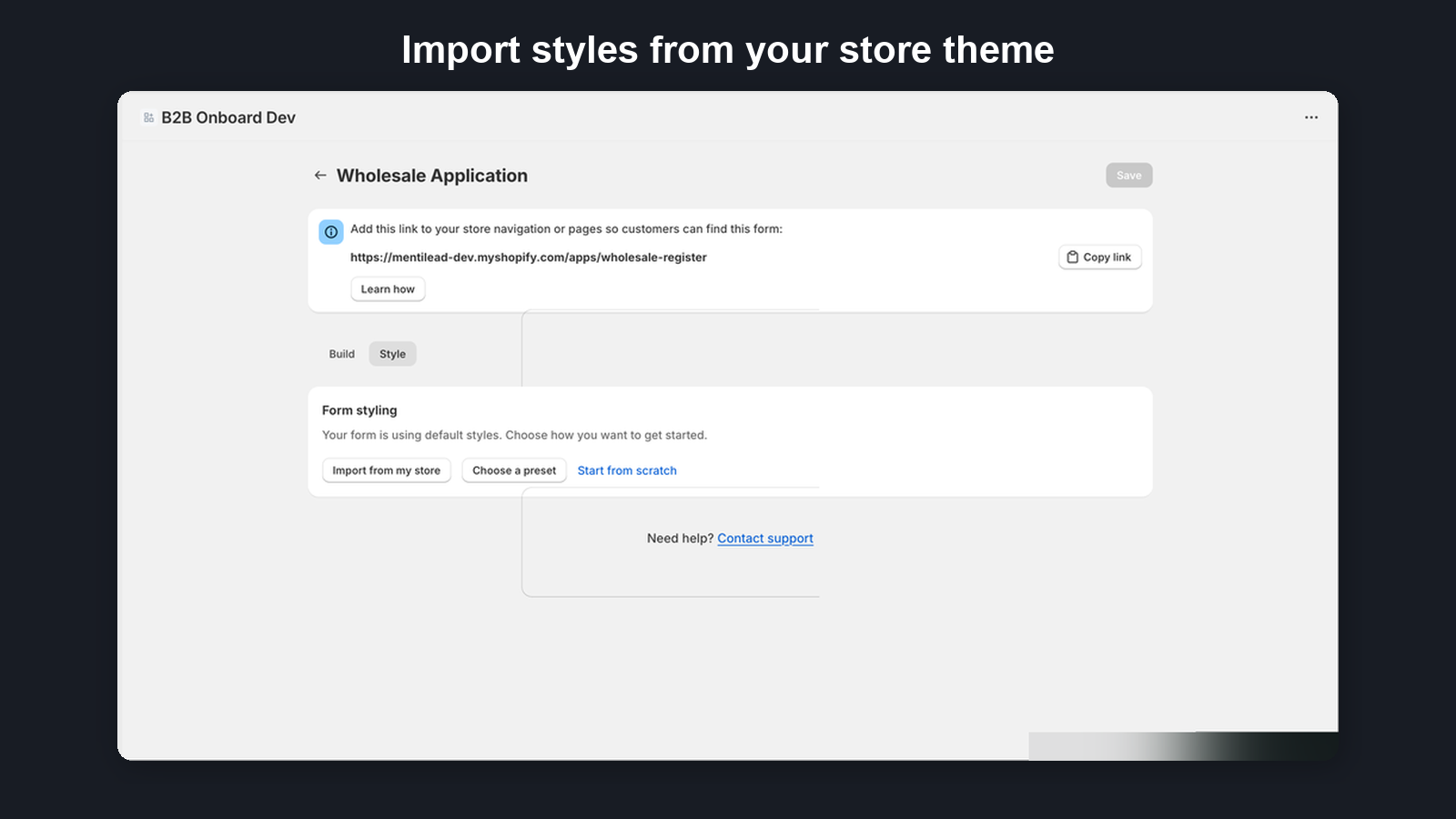
- Import from my store — Automatically detect your Shopify theme's colors and fonts
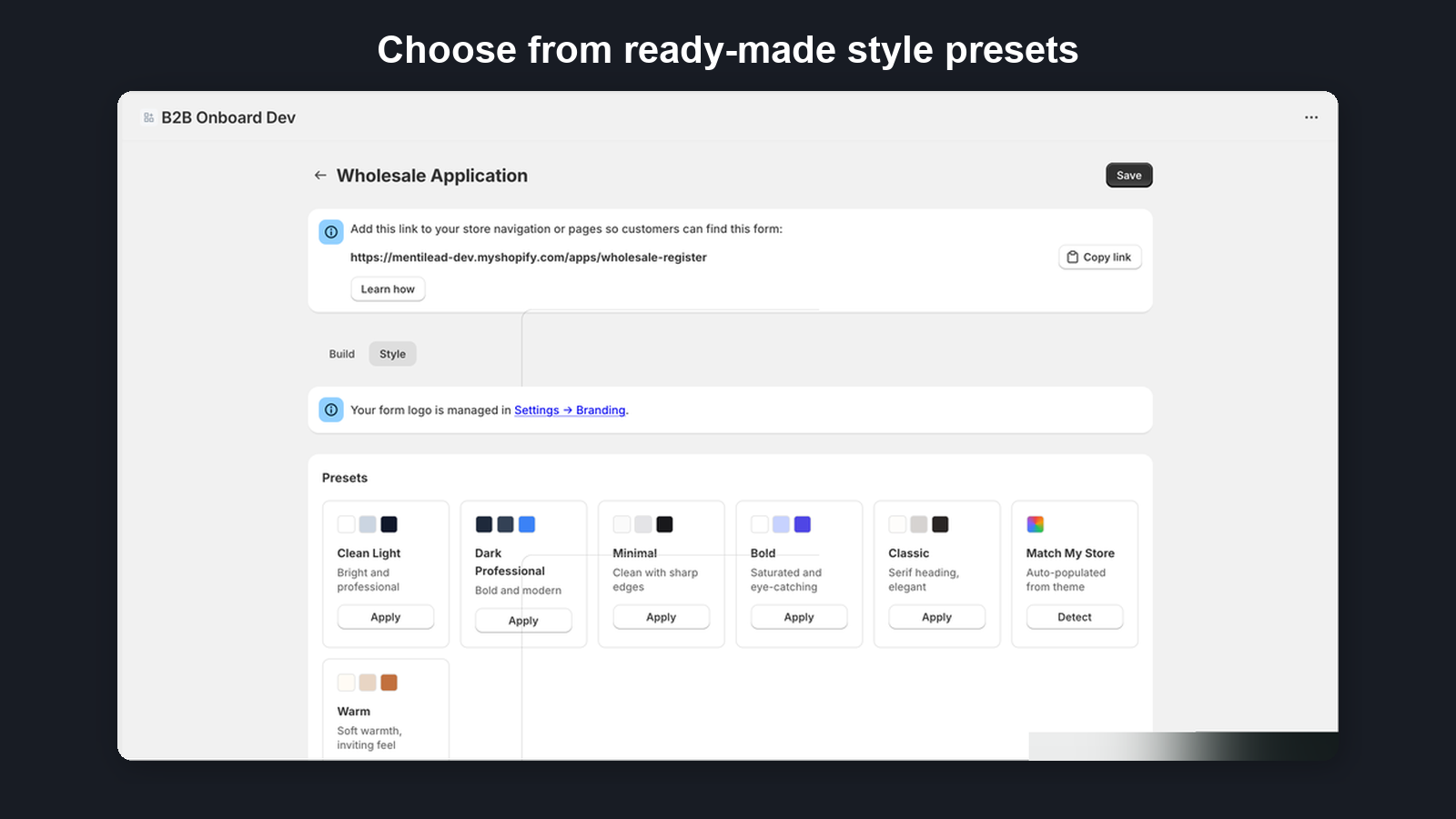
- Choose a preset — Pick from 7 pre-built themes: Clean Light, Dark Professional, Minimal, Bold, Classic, Warm, or Match My Store
- Start from scratch — Begin with sensible defaults
- Copy from another form — Reuse styling from an existing styled form
Color controls (all plans)
- Form background, page background (the area around the form — automatic by default, and transparent inside the theme app block so the form sits on your page's own colour) and text colours
- Input field background, border, and text colors
- Button background and text colors
- WCAG contrast checking shows whether your color combinations meet accessibility standards
Typography (all plans)
Choose from 30+ Google Fonts grouped by category (sans-serif, serif, display, monospace). On the Growth and Pro plans the Body font and Heading font lists also offer Your fonts — font files you have uploaded to Shopify Files (see Advanced styling below).
Shape and layout (all plans)
- Corner roundness (sharp to rounded)
- Form width (narrow to wide)
- Form shadow (none, subtle, medium, strong)
- Column layout — single or two-column form layout
- Step indicator — on multi-step forms only, choose Step names and counter (the step name pills plus “Step 1 of 4”), Counter only (just “Step 1 of 4”), or Hidden (no step chrome at all). Single-page forms show no step indicator either way.
Advanced styling (Growth and Pro plans)
Your fonts: use your own licensed or self-hosted typeface inside the form. Upload the font file under Content → Files in your Shopify admin, copy its URL, and paste it into the Your fonts block on the Style tab together with a font name, weight and style. WOFF2 is recommended (WOFF, TTF and OTF also work); you can add up to four fonts per form. Added fonts appear at the top of the Body font and Heading font lists. Only files hosted on Shopify Files are accepted — fonts from Shopify's own font library cannot be used inside the form, and the app does not offer a free-form CSS box.
- Fine-tune colors: heading color, link color, label color, placeholder text, button hover, focus ring, error colors
- Fine-tune typography: separate heading font, heading/body sizes, font weights, label style (sentence case or uppercase), label letter-spacing
- Fine-tune shape: individual corner radius for inputs, buttons, and containers; container border width and color; input border (none, 1px, 2px); button style (filled or outline)
- Fine-tune spacing: field gap, form padding, section gap, label gap
- Custom content: rich text header and footer with bold, italic, links, and lists
- Live preview: side-by-side preview panel with desktop/mobile toggle and draft vs saved comparison
- Undo/redo: step through style changes
Responsive behavior
All forms are fully responsive and adapt to mobile screen sizes automatically, regardless of your plan.
13. Multiple Forms and Plan Limits
You can create multiple registration forms, each with its own unique registration URL. This is useful when you need different application processes for different customer types (e.g., wholesalers vs. resellers).
When you create a form you choose a blueprint — a starting set of fields built from what wholesale merchants actually ask: Wholesale application (the form a new store starts with), Essentials, regional starters for the United States, the EU (Italian buyers additionally see the SDI code / PEC and split-payment fields), the United Kingdom, Australia / New Zealand, Canada and Norway (tax-ID wording and the questions typical for that market), and business-type starters (Licensed trade, Larger accounts, Resellers with documents) — or Blank. The blueprint matching your store's country is pre-selected. Every blueprint is just a start: edit, reorder or remove anything afterwards.
The number of forms you can create depends on your plan:
| Plan | Form Limit |
|---|---|
| Free | 2 forms |
| Starter | 3 forms |
| Growth | 10 forms |
| Pro | Unlimited forms |
Each form gets a unique URL that you can share with prospective B2B customers or link to from your storefront.
13a. Export and Import a Form (JSON)
You can save any registration form as a JSON file and import it again — into the same store or into another store that runs B2B Onboard. This is handy for moving a form between a staging store and your live store, keeping a copy before a big change, or sending a form to support so we can reproduce a problem exactly.
Export a form
Go to Forms and click Export JSON on the form’s row. Your browser downloads a file ending in .b2b-onboard-form.json. The file holds the form’s fields, settings, conditional rules, styling, translations and confirmation text. It contains no applicant data — no applications, answers or uploaded documents. System forms (such as the credit application) can’t be exported.
Import a form
Go to Forms → Create form, drop the file into Import a form and click Import JSON. An import never changes an existing form: it always creates a new, inactive form named after the original with “(imported)” added, and opens it in the form builder. The file is checked exactly like a save in the form builder, so a form the builder would refuse to save can’t be imported either.
Some settings only mean something in the store they came from, so they are left out of the imported form:
- Metafield mappings — they point at the other store’s metafield definitions.
- Market assignments in conditional rules — markets belong to the other store. The rest of the rule (conditions, tags, auto-approval) is kept.
- Custom fonts — the font files were uploaded to the other store.
Re-add them in the form builder after the import. Language settings follow your plan: if your plan does not include translations, the imported form starts in English only (any translated text is kept and appears once you upgrade and turn the languages on).
Plan limits
An imported form is inactive, so it does not count against your plan’s form limit until you activate it from the Forms list.
14. Conditional Rules
Conditional rules let one form adapt to each applicant in real time — show distributor-only fields when someone picks “Distributor”, hide a tax field for an EU region, or skip an entire step for retailers — without maintaining separate forms. Open the Rules tab in the form builder to author them.
Each rule is an if-then statement: a set of conditions and an ordered list of actions that run when those conditions are met. Rules are evaluated on the registration form as the applicant types and whenever an answer changes.
Conditions and combinators
A condition compares one field’s current value using an operator. A rule can have one or more conditions joined by a combinator:
- All conditions (AND) — the rule fires only when every condition is true.
- Any condition (OR) — the rule fires when at least one condition is true.
The Operator dropdown only offers the operators that work for the field you picked:
- Checkbox — is checked or is unchecked.
- Dropdown — equals, does not equal, is empty, or is not empty.
- Multi-select — contains, is empty, or is not empty.
- File upload — is empty or is not empty.
- Text and every other field (including an address’s State/Province and a name’s first/last name) — equals, does not equal, contains, greater than, less than, is empty, or is not empty.
- Country (see below) — the set operators is any of and is none of.
For a dropdown or multi-select condition you don’t type the value: the Value control is itself a dropdown of that field’s own options, so the condition always matches what the applicant can actually pick.
Country conditions and clusters
Address fields expand in the condition Field dropdown into their own sources — “Business Address — Country” and “Business Address — State/Province” — so a rule can read just the country the applicant picked. (Name fields expand the same way into First name / Last name.)
For a Country source the operators become is any of / is none of, and the value control is a multi-select that lists three ready-made country clusters first, then every country:
- European Union (EU) — the 27 EU member states.
- EU + United Kingdom — the EU plus the UK.
- European Economic Area (EEA) — the EU plus Iceland, Liechtenstein, and Norway.
You can mix a cluster with individual countries (for example EU plus Switzerland). A typical rule is “When Business Address — Country is any of European Union → Make VAT ID required”, or use it to show a reseller-certificate upload only for the regions that need one.
Countries are matched on the ISO country code the address form sends (for example GR for Greece, DE for Germany), so the clusters work the same way regardless of how the country name is displayed.
Your default form already adapts by jurisdiction
You don’t have to build any of this yourself to get started. Every new install’s default Wholesale Application form ships with jurisdiction-adaptive rules pre-seeded, so a single form serves buyers worldwide and adjusts to each buyer’s Business Address — Country in real time:
- EU & UK buyers — the Tax / VAT ID field becomes required (EU and UK VAT numbers are verified automatically).
- Australian buyers — the Tax / VAT ID field becomes required (an Australian ABN, also verified automatically).
- New Zealand buyers — the Tax / VAT ID field becomes required (a New Zealand NZBN, also verified automatically against the NZBN register).
- United States buyers — a Reseller Certificate upload appears so US resellers can attach their certificate.
- Everyone else — a lean form with an optional tax field and no reseller-certificate upload.
There is no market-selection question — rules that don’t match a given buyer simply never fire, so shipping every jurisdiction’s rule costs nothing. These seeded rules are ordinary conditional rules: open the Rules tab to view, edit, or remove them, and they work on every plan. New jurisdictions are added over time as more tax registries come online.
Canadian buyers can enter either a GST/HST program account number (123456789RT0001) or a nine-digit Business Number in the Tax / VAT ID field, and the format is checked as they type. There is no seeded Canadian rule: the field’s required or optional state does not change for Canada, and Canadian numbers are not checked against any registry — only their format is validated. Add your own rule on the Rules tab if you want the field required for Canadian addresses.
Actions
Actions run top to bottom; if two actions target the same field, the last one wins. You can reorder them with the up/down arrows. The available actions are:
- Show field / Hide field — reveal or hide a field. A hidden field is also excluded from submission so it never blocks the form. Fields start visible, so Show field only reveals a field that another rule hid — to show a field just for some applicants, add a rule that hides it for everyone else.
- Make field required / Make field optional — change whether an answer is required.
- Enable field / Disable field — lock or unlock a field for editing.
- Set field value / Clear field value — prefill or empty a field; dependent rules re-evaluate automatically.
- Show step / Hide step — on a multi-step form, reveal or skip an entire step. The wizard never lands on a hidden step.
Show field and Hide field can also target Headings and Paragraphs, so a section’s title and explanation appear only when its fields do. For example, hide the “US sales tax” heading and paragraph unless Business Address — Country is United States, alongside the US-only fields they introduce. Layout elements can only be shown or hidden — they can’t be made required or given a value, so the other field actions don’t list them.
Conditional rules are presentational: they change what the applicant sees and fills in, but the full application is always re-validated on the server when it is submitted, against the same rules the applicant saw. Rules are optional — a form with no rules behaves exactly as before.
Fields and steps a rule hides are skipped when the application is checked, so a required field you hide for some applicants never blocks them. The Rules tab warns you when a rule hides a required field (applicants it matches won’t be asked for it) and when a rule checks a field that no longer exists — such a rule will never match, so edit or delete it, when an enabled rule has no actions left and does nothing, when a condition uses an operator or value that can’t work for its field (for example is checked on a dropdown, or a value that isn’t one of the dropdown’s options), and when a rule shows a field that no rule ever hides, so the field is always visible anyway. These warnings never block saving. Actions that point at a deleted field are removed automatically when you save the form.
Server actions (Growth plan)
On top of the presentational actions above, a rule can carry server actions that run on Mentilead’s servers based on the applicant’s answers. They never run on the public form — the applicant’s submitted values are evaluated server-side, so a visitor cannot tamper with them. Server actions require the Growth plan and are independent of the legacy VAT/email auto-approval toggle in Settings — you can author them without turning that on. Rules only ever evaluate applications submitted through your storefront form — companies created by a CSV import are not evaluated against rules, so an imported row falls back to your Settings defaults (including the Default B2B market) rather than to a rule’s server actions.
- Auto-approve application — automatically approves a matching application instead of leaving it for manual review. It composes with VAT verification: by default it only approves when the application’s VAT number has been verified. Tick Bypass VAT guard on the action to approve matching applications even when VAT is not verified (for example, to fast-track a trusted region).
- Tag on submission — records a tag at submission time (visible in the application timeline) and applies it to the customer when the application is approved.
- Tag when approved — applies a tag to the Shopify customer when the application is approved.
- Assign B2B market (on Shopify Basic, Grow and Advanced stores — not Plus, where catalogs are assigned directly) — routes the approved company’s location to a specific B2B market based on the applicant’s answers, so buyers in different regions land on the right currency, catalogue and taxes. Pick the market on the action; the option only appears when your store has B2B markets to choose from. Precedence, highest first: a market chosen on the Approve page, then the first matching rule, then your Settings → B2B Company default market. Because the market is resolved on the server, bulk approvals, auto-approval and Shopify Flow approvals all honour the rule too. Shopify Plus stores assign catalogues directly instead, so this action is not offered there.
Tags from matched rules are merged with your Settings → Customer Tags and any per-option tags, case-insensitively de-duplicated. The tag preview on the application detail page shows exactly which tags Approve will apply, including rule-derived tags.
Submitted values are fixed once an application is received, so tag and auto-approve actions are recomputed at approval from the same answers the applicant submitted. Editing a form’s rules does not retroactively change applications that were already submitted under the old rules.