Shopify Flow Guide
Automate B2B registration workflows with Shopify Flow triggers and actions.
What is Shopify Flow?
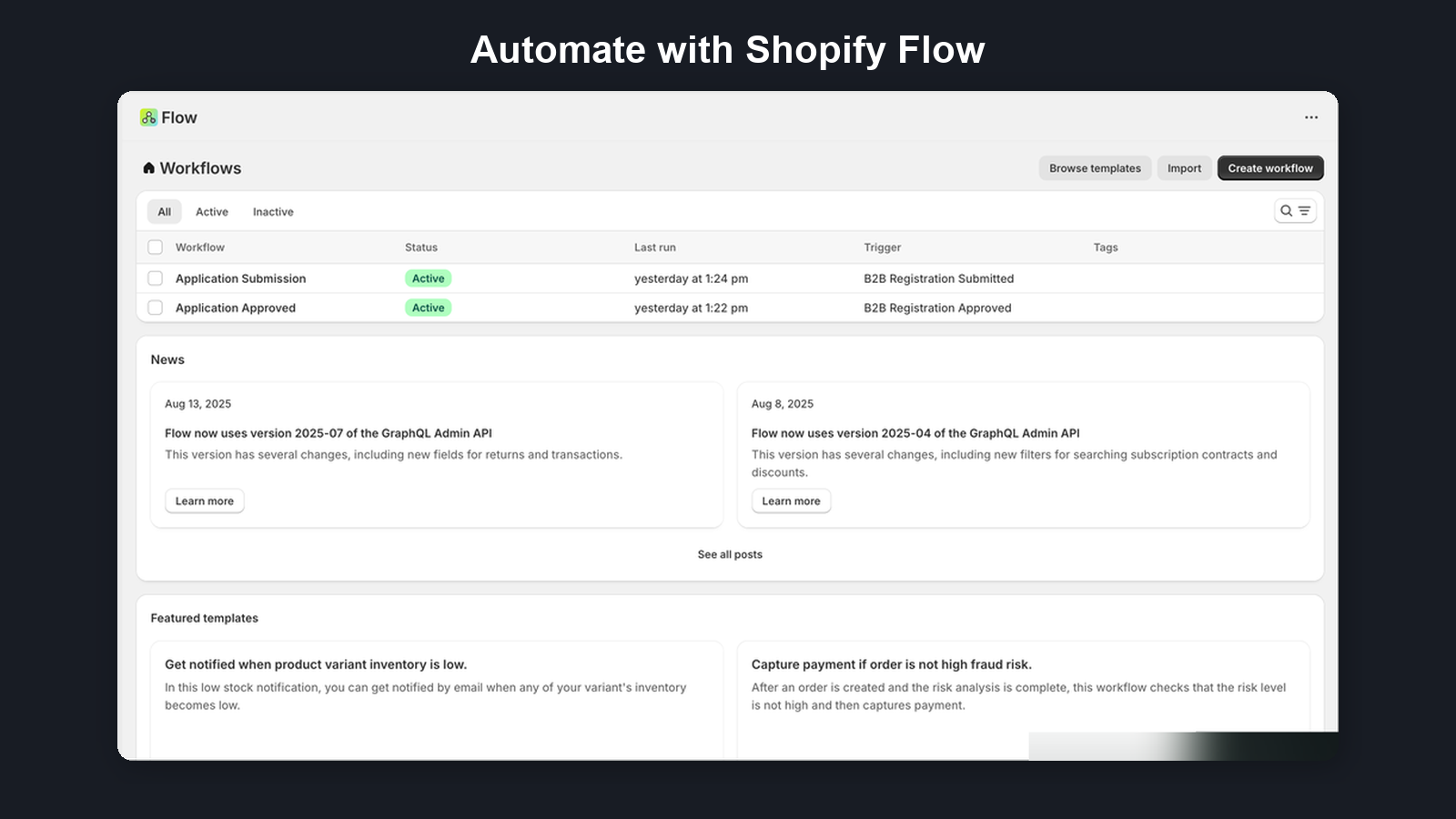
Shopify Flow is Shopify's built-in automation platform. B2B Onboard integrates with Flow to let you automate registration workflows without writing any code.
Triggers fire events when things happen in B2B Onboard — a new application is submitted, an application is approved, rejected, or more information is requested. Actions let Flow workflows take actions inside B2B Onboard — approving or rejecting an application, tagging a customer, or adding an internal note to an application.
You can combine B2B Onboard triggers and actions with hundreds of other Shopify Flow connectors to build powerful automations.
Plan Availability
| Feature | Available On |
|---|---|
| All triggers (they fire on every plan) | All plans (Free, Starter, Growth, Pro) |
| Richer trigger fields (contact email, tax ID, country, form answers, certificates, approval outcome; marked Growth+ in the Payload reference) | Growth and Pro plans only |
| All actions (Approve, Reject, Tag B2B Customer, Add internal note) | Growth and Pro plans only |
| Certificate download links | Growth and Pro plans only |
Every trigger fires on every plan, so you can build workflows on any plan. On Free and Starter the Growth+ fields are present but empty. Actions that execute back into B2B Onboard, and certificate download links, need Growth or Pro.
Available Triggers
Triggers fire events when something happens in B2B Onboard. Use them to start Flow workflows. Every trigger fires on every plan; the richer fields are filled on Growth and Pro. The Payload reference lists every field.
| Trigger | Handle | Fields by plan |
|---|---|---|
| Registration Submitted Fires when a new B2B application is submitted. For an application held by your plan limit, it fires when the application is released for review instead. It also fires when you mark a quarantined application as not spam, so expect it alongside Registration Restored or Registration Released | b2b-registration-submitted |
All plans: application ID, company and contact name, form, submitted time. Growth+: contact email, tax ID and check, country, answers, certificates (no links), released from hold. See the registration fields and Submitted-only fields |
| Registration Approved Fires when an application is approved (manually or auto-approved) | b2b-registration-approved |
All plans: application ID, names, form, Shopify customer and company IDs, reviewer, the customer as a Flow reference, and the company, company contact and company location as IDs. Growth+: the registration fields, the approval outcome (company, market, catalog, tags, metafields, tax exemption) and certificates, with download links when turned on. See Approved-only fields |
| Registration Rejected Fires when an application is rejected: one at a time from its page, in bulk from the Applications list, or by the Reject action in a Flow workflow | b2b-registration-rejected |
All plans: application ID, names, form, rejection reason, reviewer, rejection kind. Growth+: the registration fields and reapplication policy. See Rejected-only fields |
| Information Requested Fires when a merchant requests additional information | b2b-registration-info-req |
All plans: application ID, names, form, the requested information. Growth+: the registration fields |
| Registration Quarantined Fires when a submission is held as suspected spam. Carries no applicant data: review it on the Quarantine tab (Applications) | b2b-registration-quarantined |
All plans: IDs, timing, spam signals and a review link. No applicant data on any plan. See Registration quarantined fields |
| Registration Restored Fires when you mark a quarantined submission as not spam | b2b-registration-restored |
All plans: IDs, names, timing, who restored it. Growth+: contact email, country, admin link. See Registration restored fields |
| Registration Released Fires when an application held by your monthly plan limit is released for review | b2b-registration-released |
All plans: IDs, names, timing, days held. Growth+: contact email, country, admin link. See Registration released fields |
| Certificate Updated Fires when a tax exemption certificate changes: verified, needs review, accepted, rejected, re-uploaded, expiring or expired | b2b-certificate-updated |
All plans: the event, status, source, expiry, covered states and IDs. Growth+: contact email, country, admin link. See Certificate updated fields |
| Tax Exemption Updated Fires when a buyer’s tax exemption is applied or removed after approval. Tax decisions made at approval are on the Registration Approved trigger, not this one | b2b-tax-exemption-updated |
All plans: the event, source, basis, target and exemption codes. Growth+: contact email, country, admin link. See Tax exemption updated fields |
| Credit Updated Fires when a B2B company applies for credit, when you approve, decline or revoke credit, and when a personal guarantee is signed | b2b-credit-updated |
All plans: the event, statuses, limits, payment terms, IDs and the company as a Flow reference. Growth+: contact email, admin link. See Credit updated fields |
| Agreement Signed Fires when a buyer signs your trade agreement, before or after approval | b2b-agreement-signed |
All plans: agreement version, when and how it was signed, IDs. Growth+: signer name, contact email, admin link. See Agreement signed fields |
Triggers are fire-and-forget. If Flow is unavailable, the app's normal operation is not affected.
Available Actions
Actions let Flow workflows take actions inside B2B Onboard. Available on Growth and Pro plans. For Application ID, use Add variable and pick applicationId from the trigger step.
| Action | Handle | Input Fields | Returns |
|---|---|---|---|
| Approve Registration Approves an application and creates the Shopify customer/company | approve-b2b-registration |
Application ID (required) | Nothing |
| Reject Registration Rejects an application with a reason | reject-b2b-registration |
Application ID (required), Rejection Reason (optional) | Nothing |
| Tag B2B Customer Adds tags to the Shopify customer created from a registration | tag-b2b-customer |
Application ID (required), Tags (required, comma-separated) | Nothing |
| Add internal note Adds a plain-text note to an application (see Adding Internal Notes from Flow) | add-internal-note |
Application ID (required), Note (required, up to 10,000 characters), Author label (optional), Note key (optional) | {{addInternalNote.noteId}}, {{addInternalNote.appendedAt}}, {{addInternalNote.truncated}}, {{addInternalNote.characterCount}}, {{addInternalNote.replacedNoteId}} |
Actions executed via Flow show "Shopify Flow" as the actor in the application timeline.
Running the Reject action on an application that is already rejected does nothing and does not fire Registration Rejected again, so a workflow on that trigger can't loop on it.
Adding Internal Notes from Flow
The Add internal note action (add-internal-note) writes whatever your workflow produces — the result of an HTTP request, a Run code step, or a fixed text — onto the application, where your reviewers look.
- Notes appear on the application page under From Shopify Flow, marked "via Shopify Flow" plus the author label, and never replace the staff note.
- Note key (optional): give a note a key, for example
background_check, and a new note with the same key replaces the previous one on the application page, which then shows only the latest version with "Latest version · replaces N earlier". Earlier versions are kept: every note stays in the application timeline and still counts toward the 200-note limit. Keys use letters, numbers, "_" and "-" (up to 64 characters) and are not case-sensitive. Without a key, every note is shown. - Notes are plain text only: line breaks are kept, links are shown as text and are not clickable.
- A note can hold up to 10,000 characters. Longer notes are shortened, marked "Shortened", and
truncatedis true. - An application can hold at most 200 notes from Flow. Notes can't be added to quarantined, sample or GDPR-erased applications.
- The step returns
noteId(ID of the new note),appendedAt(when it was added, ISO 8601 UTC),truncated(true when it was shortened)characterCount(characters stored) andreplacedNoteId(ID of the earlier note with the same Note key that this note replaces, or empty when there is none), which later steps in the workflow can use. In the Flow editor they are under the Add internal note step, for example{{addInternalNote.noteId}}. - If Flow retries or re-runs the same step, the note is not added a second time.
B2B Onboard never decides anything from a note: notes never approve or reject an application. Use the Approve or Reject actions for that.
Copy Flow notes to the company (Growth and Pro, off by default): in Settings → Automations, choose a Note key (for example background_check) and a company metafield namespace and key (for example custom.background_check). When the application is approved, the latest note with that key is written to the Shopify company as a multi-line text metafield, for a new company and for an existing company the application was matched to. After approval, each newer note with the same key updates the metafield, so apps and the Admin API always read the latest version. If your store already has a metafield definition with that namespace and key, it must be of type multi-line text, or Shopify rejects the write; the approval itself still succeeds.
Payload reference
Every field each trigger sends, one table per trigger. The four registration triggers (Submitted, Approved, Rejected, Information Requested) share one table of registration fields, followed by the fields only some of them carry. The other triggers each have their own table.
- Field is the name shown in the Flow editor. Flow variable is what you type in Liquid: the field name in camelCase, for example Tax ID Source is
{{taxIdSource}}. - Plan: All fields are filled on every plan. Growth+ fields are always present, but empty (or 0 / false) on Free and Starter and filled on Growth and Pro.
- Flow references (
customeron Registration Approved,companyon Credit Updated) are Shopify objects, not text: later steps can read their data directly, for example{{customer.email}}. - Lists (
answers.items,certificates.items) are described in List fields. Flow doesn’t output a whole list or object: loop over the items and use their fields.
{% for c in certificates.items %}{{c.fileName}} {{c.status}}{% endfor %}
To put a text value into JSON (for example in a Send HTTP request body), add | json to that one field: {{c.fileName | json}} outputs it quoted and escaped.
Trigger Fields
All four registration triggers (Registration Submitted, Registration Approved, Registration Rejected and Information Requested) carry the fields below, so you can branch a workflow on what the applicant answered or send the application to your own systems. The fields only some of them carry are in Approved-only fields and Submitted-, Rejected- and Information Requested-only fields.
| Field | Flow variable | Type | Example | Empty when… | Plan |
|---|---|---|---|---|---|
| Application IDID of the application. Pass it to the B2B Onboard actions | applicationId |
Text | 3f2a9c4e-8b1d-… |
Never | All |
| Company Name | companyName |
Text | Acme Wholesale Ltd |
the form has no company name question | All |
| Contact Name | contactName |
Text | Jane Smith |
the form has no name question | All |
| Form IDID of the form the application was submitted on | formId |
Text | default |
Never | All |
| Form Name | formName |
Text | Wholesale application |
the form was deleted | All |
| Contact EmailThe applicant’s email address | contactEmail |
Text | jane@acme.example |
Never | Growth+ |
| Country CodeTwo-letter country code of the delivery address | countryCode |
Text | DE |
no delivery address was given | Growth+ |
| Tax IDThe tax ID (VAT, ABN, NZBN, organisation number …) the applicant entered | taxId |
Text | DE123456789 |
the form has no tax ID question or it was left blank | Growth+ |
Tax ID StatusResult of the tax ID check: verified, invalid, pending or not_checked |
taxIdStatus |
Text | verified |
no check ran | Growth+ |
Tax ID SourceThe registry that checked it: vies, vatsense, hmrc, abr, nzbn or brreg |
taxIdSource |
Text | vies |
no check ran (or, on older applications, the VAT source wasn’t recorded) | Growth+ |
| Application URLLink to the application in your Shopify admin | applicationUrl |
Text | https://admin.shopify.com/store/…/apps/… |
Never | Growth+ |
| Certificate CountNumber of tax exemption certificates on the application | certificateCount |
Number | 2 |
0 when there are none | Growth+ |
Certificate StatusThe most attention-worthy status across the certificates: collected, verifying, verified, flagged or needs_review. On Submitted it is normally collected or verifying, because AI verification runs after submission |
certificateStatus |
Text | verified |
there are no certificates | Growth+ |
| AnswersEvery question on the form, in form order | answers.items |
List | Answer items | items are dropped from the end when the payload is too large (see answersTruncated) | Growth+ |
Answers TextOne Question: value line per answered question, ready to paste into an email or note |
answersText |
Text | Company size: 11-50 |
nothing was answered | Growth+ |
| Answers TruncatedTrue when a very long answer, or the list itself, was shortened to fit Flow’s size limit | answersTruncated |
True/false | false |
Never | Growth+ |
OriginWhere the application came from: storefront, csv_import or shopify_sync |
origin |
Text | storefront |
Never | Growth+ |
| Is ReapplicationTrue when the same email address had applied to your store before | isReapplication |
True/false | false |
Never | Growth+ |
| Previous Application CountEarlier applications from the same email address on your store, counted when this one was submitted | previousApplicationCount |
Number | 0 |
Never | Growth+ |
List fields: answers and certificates
answers.items is on all four registration triggers. certificates.items is on Registration Submitted (without download links) and Registration Approved (with downloadUrl and linkExpiresAt when certificate download links are on); it lists at most 20 certificates, newest first, and certificateCount has the total. Both lists are empty on Free and Starter. The variables below assume a loop such as {% for a in answers.items %}.
Answer items (answers.items)
| Item field | In a loop | Type | Example | Empty when… | Plan |
|---|---|---|---|---|---|
| questionThe question label as you wrote it | a.question |
Text | Company size |
Never | Growth+ |
| keyKey built from the label (see below) | a.key |
Text | company_size |
Never | Growth+ |
typeThe question type: text, select, checkbox, address … |
a.type |
Text | select |
Never | Growth+ |
valueThe answer as text. Checkboxes read Yes or No; file questions carry only the file names |
a.value |
Text | 11-50 |
the question was not answered | Growth+ |
Certificate items (certificates.items)
| Item field | In a loop | Type | Example | Empty when… | Plan |
|---|---|---|---|---|---|
| certificateIdID of the certificate in B2B Onboard | c.certificateId |
Text | b7e1… |
Never | Growth+ |
| fileNameThe file name the buyer uploaded | c.fileName |
Text | resale-certificate.pdf |
Never | Growth+ |
| contentTypeThe file type | c.contentType |
Text | application/pdf |
Never | Growth+ |
| sizeBytesFile size in bytes | c.sizeBytes |
Number | 482133 |
Never | Growth+ |
statusVerification status: collected, verifying, verified, flagged or needs_review |
c.status |
Text | verified |
Never | Growth+ |
decisionYour decision: accepted or rejected |
c.decision |
Text | accepted |
you haven’t accepted or rejected it | Growth+ |
| certificateExpiresAtThe certificate’s own expiry | c.certificateExpiresAt |
Text (ISO 8601) | 2027-06-30T00:00:00Z |
the certificate has no expiry | Growth+ |
| downloadUrlApproved only: a time-limited download link | c.downloadUrl |
Text | https://app.onboard.mentilead.com/api/flow-certificate/… |
links are off, and always on Submitted | Growth+ |
| linkExpiresAtApproved only: when that link stops working | c.linkExpiresAt |
Text (ISO 8601) | 2026-10-01T09:30:00Z |
links are off, and always on Submitted | Growth+ |
To use one specific answer, loop over the answers and match on its key:
{% for a in answers.items %}{% if a.key == "company_size" %}{{ a.value }}{% endif %}{% endfor %}
The key is built from the question label, exactly like the answer variables in your email templates (company_size in Flow is {{fields.company_size}} in an email). Two questions with the same label get _2, _3 and so on. If you edit a question’s label, its key changes, so update any workflow that matches on the old key.
Approved-only fields
Registration Approved carries the registration fields plus the fields below, which say what the approval did in Shopify. The customer reference, the customer and company IDs and autoApproved / reviewedBy are sent on every plan. The company is sent as IDs rather than a Flow reference because an approval can have no company; to load the company in a workflow, use Flow’s “Get company data” action with the Shopify Company ID.
| Field | Flow variable | Type | Example | Empty when… | Plan |
|---|---|---|---|---|---|
| Shopify Customer IDNumeric ID of the Shopify customer the approval created or matched | shopifyCustomerId |
Text | 7412365897 |
no customer was created or matched | All |
| Shopify Company IDNumeric ID of the Shopify B2B company | shopifyCompanyId |
Text | 98234567 |
no company was created or matched | All |
| Auto ApprovedTrue when the application was approved automatically | autoApproved |
True/false | false |
Never | All |
Reviewed ByThe staff member who approved it, or Shopify Flow for the Approve action |
reviewedBy |
Text | jane@yourstore.com |
no reviewer was recorded | All |
| Customer ReferenceThe customer’s GID, for steps that need one | customerReference |
Text | gid://shopify/Customer/7412365897 |
no customer was created or matched | All |
| Customer (reference)The approved Shopify customer | customer |
Flow reference | {{customer.email}} |
left out when there is no customer | All |
| Company Location IDNumeric ID of the B2B company location. Sent as an ID because Flow has no company-location reference | companyLocationId |
Text | 55512345 |
no company was created or matched | All |
| Company Contact IDNumeric ID of the B2B company contact | companyContactId |
Text | 88812345 |
empty when the approval has no company | All |
Company StatusWhat the approval did with the B2B company: created, matched, possible_duplicate, customer_already_linked, failed or skipped |
companyStatus |
Text | created |
Never | Growth+ |
Company Skipped ReasonWhy it didn’t run: no_native_b2b, auto_create_disabled or no_customer |
companySkippedReason |
Text | no_native_b2b |
the company step ran | Growth+ |
| Market IDThe B2B market the company location was added to | marketId |
Text | gid://shopify/Market/1234567 |
no market was assigned, or the assignment failed | Growth+ |
Market SourceHow that market was chosen: rule, default or override |
marketSource |
Text | rule |
no market was assigned | Growth+ |
| Catalog IDThe catalog assigned to the company location | catalogId |
Text | gid://shopify/CompanyLocationCatalog/8765432 |
no catalog was assigned, or the assignment failed | Growth+ |
Contact RoleRole granted to the company contact: admin, buyer or kept_existing (the contact already held a role) |
contactRole |
Text | buyer |
no company contact | Growth+ |
| Payment Terms Template IDPayment terms set on the company location | paymentTermsTemplateId |
Text | gid://shopify/PaymentTermsTemplate/4 |
no payment terms were set | Growth+ |
| Checkout To DraftTrue when checkout on the company location creates draft orders | checkoutToDraft |
True/false | false |
Never | Growth+ |
| Tags AppliedEvery customer tag this approval wrote, comma-separated | tagsApplied |
Text | b2b,wholesale |
no tags were written | Growth+ |
| Reviewer TagsTags the reviewer added by hand on the Approve page | reviewerTags |
Text | vip |
automatic and imported approvals, or none added | Growth+ |
Reviewer Metafield KeysMetafields the reviewer set, as owner:namespace.key, comma-separated. Keys only: read the values from the customer or company |
reviewerMetafieldKeys |
Text | customer:custom.tier |
the reviewer set none | Growth+ |
Metafield Writes StatusOutcome of the form’s metafield mappings: written, partial or failed |
metafieldWritesStatus |
Text | written |
no metafield mappings ran | Growth+ |
Tax Exemption OutcomeThe approval’s tax decision: applied, withheld, skipped or failed |
taxExemptionOutcome |
Text | applied |
no decision was made (automatic tax exemption off, or no verified VAT number and no certificates) | Growth+ |
Tax Exemption Basiseu_reverse_charge, resale, ca_provincial_pst or none |
taxExemptionBasis |
Text | eu_reverse_charge |
no exemption was evaluated | Growth+ |
Tax Exemption ReasonWhy it was withheld (pending_clearance, certificate_rejected) or skipped (for example no_covered_states, no_sales_tax_states, no_provincial_tax, jurisdiction_unknown, jurisdiction_unsupported, not_eligible, location_blanket_exempt, no_exemption_applicable) |
taxExemptionReason |
Text | pending_clearance |
the exemption was applied, or none was evaluated | Growth+ |
| Tax Exemptions AppliedThe per-state or per-province exemption codes written, comma-separated | taxExemptionsApplied |
Text | US_CA_RESELLER_EXEMPTION |
none were written | Growth+ |
| CertificatesThe certificates on the application, with a download link each when certificate download links are on | certificates.items |
List | Certificate items | there are no certificates | Growth+ |
| Certificate Links EnabledTrue when this run carries download links: you’re on Growth or Pro and the setting is on. Use it as a condition before a step that downloads the files | certificateLinksEnabled |
True/false | true |
Never | Growth+ |
Reviewer-set metafields are sent as keys only: the values are already on the customer or company in Shopify, so read them there: customer metafields through the customer reference, and company metafields by loading the company with Flow’s Get company data action and the Shopify Company ID.
Submitted-, Rejected- and Information Requested-only fields
Besides the registration fields, each of these triggers carries the fields marked with its name.
| Field | Flow variable | Type | Example | Empty when… | Plan |
|---|---|---|---|---|---|
| Submitted At (Submitted)When the application was submitted | submittedAt |
Text (ISO 8601) | 2026-09-29T08:15:00.000Z |
Never | All |
Released From Hold (Submitted)plan_limit when it was held by your plan’s monthly limit and has now been released, spam_quarantine when you restored it from spam review |
releasedFromHold |
Text | plan_limit |
a normal submission | Growth+ |
Certificates (Submitted)The same items as on Approved, never with a download link (downloadUrl and linkExpiresAt are always empty) |
certificates.items |
List | Certificate items | there are no certificates | Growth+ |
| Rejection Reason (Rejected)The reason entered when rejecting | rejectionReason |
Text | Incomplete documents |
no reason was given | All |
Reviewed By (Rejected)Who rejected it, or Shopify Flow for the Reject action |
reviewedBy |
Text | jane@yourstore.com |
no reviewer was recorded | All |
Reapplication Policy (Rejected)The form’s reapplication setting: always, after_30_days or never |
reapplicationPolicy |
Text | after_30_days |
Never | Growth+ |
Rejection Kind (Rejected)How it was rejected: manual (one application, from its page), bulk (from the Applications list) or flow (the Reject action in a Flow workflow) |
rejectionKind |
Text | manual |
Never | All |
| Requested Info (Information Requested)The message sent to the applicant | requestedInfo |
Text | Please upload your resale certificate |
Never | All |
A rejected application is no longer waiting for review, so the rejected applicant can apply again under every policy. reapplicationPolicy only tells you whether the form blocks a duplicate while an earlier application is still waiting: never blocks it, after_30_days blocks it until 30 days after the waiting application was submitted, and always never blocks.
Registration quarantined fields
The Registration Quarantined trigger deliberately carries no applicant data on any plan: no company or contact name, no email and no answers. A quarantined submission is suspected spam, so its content could be spam text or phishing links, and forwarding it to Slack, email or another system would pass that on. You get IDs, timing, the names of the checks that flagged it and a link to review it in the app. It carries no customer or company reference. To stop a spam burst flooding your workflows, it fires at most 20 times per hour per store; further quarantined submissions in that hour are still held and listed on the Quarantine tab (Applications).
| Field | Flow variable | Type | Example | Empty when… | Plan |
|---|---|---|---|---|---|
| Application IDID of the quarantined submission | applicationId |
Text | 3f2a9c4e-8b1d-… |
Never | All |
| Form IDID of the form it came through | formId |
Text | default |
Never | All |
| Submitted AtWhen it was submitted | submittedAt |
Text (ISO 8601) | 2026-09-29T08:15:00.000Z |
Never | All |
| Spam SignalsComma-separated names of the checks that flagged it | spamSignals |
Text | honeypot,rate_limit_ip |
Never | All |
| Signal CountNumber of checks that flagged it | signalCount |
Number | 2 |
Never | All |
| Review URLLink to the Quarantine tab (Applications) in your admin | reviewUrl |
Text | https://admin.shopify.com/store/…/apps/… |
Never | All |
| Deletes AtWhen it is deleted automatically unless you mark it as not spam (30 days after submission) | deletesAt |
Text (ISO 8601) | 2026-10-29T08:15:00.000Z |
Never | All |
Registration restored fields
The Registration Restored trigger fires once when you mark a quarantined submission as not spam. The application then continues like a fresh submission, so Registration Submitted fires too. It carries no customer or company reference: none exists yet. If the application is approved, Registration Approved carries them.
| Field | Flow variable | Type | Example | Empty when… | Plan |
|---|---|---|---|---|---|
| Application ID | applicationId |
Text | 3f2a9c4e-8b1d-… |
Never | All |
| Company Name | companyName |
Text | Acme Wholesale Ltd |
not asked on the form | All |
| Contact Name | contactName |
Text | Jane Smith |
not asked on the form | All |
| Form ID | formId |
Text | default |
Never | All |
| Submitted At | submittedAt |
Text (ISO 8601) | 2026-09-29T08:15:00.000Z |
Never | All |
| Restored ByWho marked it as not spam | restoredBy |
Text | jane@yourstore.com |
Never | All |
| Contact EmailApplicant’s email address | contactEmail |
Text | jane@acme.example |
Never | Growth+ |
| Country CodeTwo-letter country code of the delivery address | countryCode |
Text | DE |
no delivery address was given | Growth+ |
| Application URLLink to the application in your admin | applicationUrl |
Text | https://admin.shopify.com/store/…/apps/… |
Never | Growth+ |
Registration released fields
The Registration Released trigger fires once per application held by your monthly plan limit when it is released for review (after an upgrade or at the start of a new month). Registration Submitted fires for it at the same time. It carries no customer or company reference.
| Field | Flow variable | Type | Example | Empty when… | Plan |
|---|---|---|---|---|---|
| Application ID | applicationId |
Text | 3f2a9c4e-8b1d-… |
Never | All |
| Company Name | companyName |
Text | Acme Wholesale Ltd |
not asked on the form | All |
| Contact Name | contactName |
Text | Jane Smith |
not asked on the form | All |
| Form ID | formId |
Text | default |
Never | All |
| Submitted At | submittedAt |
Text (ISO 8601) | 2026-09-29T08:15:00.000Z |
Never | All |
| Released AtWhen it was released for review | releasedAt |
Text (ISO 8601) | 2026-10-01T00:05:00.000Z |
Never | All |
| Days HeldWhole days it waited behind the plan limit | daysHeld |
Number | 2 |
Never | All |
| Contact EmailApplicant’s email address | contactEmail |
Text | jane@acme.example |
Never | Growth+ |
| Country CodeTwo-letter country code of the delivery address | countryCode |
Text | DE |
no delivery address was given | Growth+ |
| Application URLLink to the application in your admin | applicationUrl |
Text | https://admin.shopify.com/store/…/apps/… |
Never | Growth+ |
Certificate updated fields
The Certificate Updated trigger has its own fields; the registration fields are not part of it. It carries no customer or company reference, because many certificate events happen before approval, when there is no customer yet: use the two ID fields instead.
| Field | Flow variable | Type | Example | Empty when… | Plan |
|---|---|---|---|---|---|
| Application IDThe application the certificate was submitted with (for a renewal, the original application) | applicationId |
Text | 3f2a9c4e-8b1d-… |
Never | All |
| Company Name | companyName |
Text | Acme Wholesale Ltd |
not asked on the form | All |
| Certificate ID | certificateId |
Text | b7e1… |
Never | All |
| Certificate EventWhat happened (values below) | certificateEvent |
Text | needs_review |
Never | All |
Certificate StatusStatus after the change: collected, verifying, verified, flagged or needs_review |
certificateStatus |
Text | verified |
Never | All |
Certificate Sourceapplication (uploaded with the application) or renewal (re-uploaded through a renewal link) |
certificateSource |
Text | application |
Never | All |
Renewal StatusFor a renewal: pending_review, accepted or rejected |
renewalStatus |
Text | pending_review |
not a renewal | All |
| Expires At | expiresAt |
Text (ISO 8601) | 2027-06-30T00:00:00Z |
the certificate has no expiry | All |
| Covered StatesUS states the certificate covers, comma-separated | coveredStates |
Text | CA,TX |
it covers no US state | All |
| Flag CountNumber of issues AI verification raised | flagCount |
Number | 0 |
Never | All |
| Shopify Customer IDThe bound Shopify customer | shopifyCustomerId |
Text | 7412365897 |
before approval | All |
| Shopify Company IDThe bound Shopify B2B company | shopifyCompanyId |
Text | 98234567 |
before approval, or no company was created | All |
| Contact EmailApplicant’s email address | contactEmail |
Text | jane@acme.example |
Never | Growth+ |
| Country CodeTwo-letter country code of the delivery address | countryCode |
Text | DE |
no delivery address was given | Growth+ |
| Application URLLink to the application in your admin | applicationUrl |
Text | https://admin.shopify.com/store/…/apps/… |
Never | Growth+ |
certificateEvent is one of these values. Add a condition such as certificateEvent == "needs_review" to react to one kind of change:
| Value | When it fires |
|---|---|
verified |
AI verification passed |
flagged |
AI verification found issues |
needs_review |
AI verification could not decide; the certificate needs your review |
accepted |
You accepted the certificate or a renewal |
rejected |
You rejected the certificate or a renewal |
renewal_submitted |
The buyer re-uploaded a certificate through the renewal link |
expiring_soon |
The certificate expires within 30 days (and again within 7 days) |
refresh_due |
A certificate with no expiry date is due for its periodic refresh |
expired |
The certificate’s effective expiry has passed |
verified, flagged and needs_review come from AI verification, which runs on Growth and Pro. expiring_soon and refresh_due fire on every plan, once per certificate, at the same 30-day, 7-day and refresh-cadence points where Pro shops get the reminder email. expired fires once when the certificate lapses.
Tax exemption updated fields
The Tax Exemption Updated trigger fires only after approval, when a buyer’s tax exemption is applied or removed in Shopify. Tax decisions made at approval (applied, withheld, skipped or failed, including automatic approval, the Flow approve action and CSV import) are on the Registration Approved trigger’s tax exemption fields, not this one, so an approval is never reported twice. Changes that write nothing to Shopify (skipped or failed) stay in the application’s timeline. The registration fields are not part of this trigger.
| Field | Flow variable | Type | Example | Empty when… | Plan |
|---|---|---|---|---|---|
| Application IDID of the approved application | applicationId |
Text | 3f2a9c4e-8b1d-… |
Never | All |
| Company Name | companyName |
Text | Acme Wholesale Ltd |
not asked on the form | All |
Tax Exemption Eventapplied or revoked |
taxExemptionEvent |
Text | applied |
Never | All |
| Tax Exemption SourceWhere the change came from (values below) | taxExemptionSource |
Text | hub_accept |
Never | All |
Exemption Basiseu_reverse_charge, resale or ca_provincial_pst |
exemptionBasis |
Text | resale |
unknown | All |
Exemption TargetWhere it is set in Shopify: customer or company_location |
exemptionTarget |
Text | company_location |
unknown | All |
| Exemptions AppliedShopify exemption codes added, comma-separated | exemptionsApplied |
Text | US_CA_RESELLER_EXEMPTION |
none were added | All |
| Exemptions RemovedShopify exemption codes removed, comma-separated | exemptionsRemoved |
Text | US_TX_RESELLER_EXEMPTION |
none were removed | All |
| Exemptions RemainingCodes still in place after a removal (backed by other certificates) | exemptionsRemaining |
Text | US_CA_RESELLER_EXEMPTION |
none remain | All |
Changed ByThe staff member, or system when a lapsed certificate removed it |
changedBy |
Text | jane@yourstore.com |
Never | All |
| Shopify Customer IDThe bound Shopify customer | shopifyCustomerId |
Text | 7412365897 |
Never | All |
| Shopify Company IDThe bound Shopify B2B company | shopifyCompanyId |
Text | 98234567 |
no company was created | All |
| Contact EmailApplicant’s email address | contactEmail |
Text | jane@acme.example |
Never | Growth+ |
| Country CodeTwo-letter country code of the delivery address | countryCode |
Text | DE |
no delivery address was given | Growth+ |
| Application URLLink to the application in your admin | applicationUrl |
Text | https://admin.shopify.com/store/…/apps/… |
Never | Growth+ |
taxExemptionSource is one of these values. Add a condition such as taxExemptionEvent == "revoked" to react to removals only:
| Value | When it fires |
|---|---|
hub_accept |
You accepted a certificate in Tax Exemptions and the exemption was applied |
hub_update_states |
You changed a certificate’s covered states and the exemption was re-applied |
hub_confirm_reverse_charge |
You confirmed reverse charge on a company location that was already tax-exempt |
hub_remove |
You removed the exemption in Tax Exemptions |
retry |
You retried the tax exemption on the application, for example once a VAT number verified |
retry_company_creation |
You retried company creation and the exemption was mirrored onto the new company location |
expiry_lapse |
A certificate lapsed and the daily check removed the exemption it backed |
When a certificate lapses, the Certificate Updated trigger fires with expired for the certificate, and this trigger fires with revoked when an exemption was actually removed from the buyer.
Credit updated fields
The Credit Updated trigger fires when a company’s trade credit changes: a buyer applies (submitted), you approve or decline the application (approved / declined; editing an approved decision fires approved again), you revoke credit (revoked), or a guarantor signs a personal guarantee (guarantee_signed). Filter on Credit Event to react to one of them. The trigger carries statuses, limits and IDs only: no guarantor or trade-reference data is ever sent; open the company in the app to see it. It also carries the Shopify company as a Flow reference.
| Field | Flow variable | Type | Example | Empty when… | Plan |
|---|---|---|---|---|---|
| Company IDNumeric ID of the Shopify B2B company | companyId |
Text | 98234567 |
Never | All |
| Company NameCompany name recorded in the app | companyName |
Text | Acme Wholesale Ltd |
Never | All |
| Company (reference)The Shopify B2B company | company |
Flow reference | {{company.name}} |
Never | All |
| Application IDID of the original registration | applicationId |
Text | 3f2a9c4e-8b1d-… |
the original registration is unknown | All |
| Credit Application IDID of the credit application the event is about | creditApplicationId |
Text | c41d… |
unknown | All |
Credit Eventsubmitted, approved, declined, revoked or guarantee_signed |
creditEvent |
Text | approved |
Never | All |
Credit StatusReview state after the change: pending, approved or rejected |
creditStatus |
Text | approved |
Never | All |
| Requested LimitCredit limit the buyer asked for | requestedLimit |
Number | 10000 |
0 when none was asked for | All |
| Approved LimitCredit limit you approved | approvedLimit |
Number | 5000 |
0 when none is in force (for example after a revoke) | All |
| CurrencyCurrency code of the limits | currency |
Text | USD |
unknown | All |
| Payment TermsName of the payment terms in force | paymentTerms |
Text | Net 30 |
no payment terms are in force | All |
Guarantee Statuspending or signed |
guaranteeStatus |
Text | signed |
no personal guarantee was required | All |
| Decided ByStaff member who made the decision | decidedBy |
Text | jane@yourstore.com |
submitted and guarantee_signed |
All |
| Contact EmailApplicant email from the original registration | contactEmail |
Text | jane@acme.example |
Never | Growth+ |
| Application URLLink to the original registration in your admin | applicationUrl |
Text | https://admin.shopify.com/store/…/apps/… |
Never | Growth+ |
Agreement signed fields
The Agreement Signed trigger fires each time a buyer accepts your trade agreement: on the registration form before approval, or from a re-sign link after approval. When an agreement signed before approval is carried over to the new company at approval, it does not fire again. No signature image, signed PDF, IP address or browser details are ever sent.
| Field | Flow variable | Type | Example | Empty when… | Plan |
|---|---|---|---|---|---|
| Application IDThe registration the agreement belongs to | applicationId |
Text | 3f2a9c4e-8b1d-… |
Never | All |
| Company IDNumeric ID of the Shopify B2B company | companyId |
Text | 98234567 |
signed before approval | All |
| Company NameFrom the application, else the one recorded for the company | companyName |
Text | Acme Wholesale Ltd |
Never | All |
| Agreement VersionVersion of your trade terms that was accepted | agreementVersion |
Text | 2026-09 |
Never | All |
| Signed AtWhen the buyer accepted | signedAt |
Text (ISO 8601) | 2026-09-29T08:20:00.000Z |
Never | All |
Acceptance Methodclick (checkbox) or signature (drawn signature) |
acceptanceMethod |
Text | signature |
Never | All |
| Signed Before ApprovalTrue when signed while the registration was awaiting review | signedBeforeApproval |
True/false | true |
Never | All |
| Signer NameName the buyer typed when accepting | signerName |
Text | Jane Smith |
Never | Growth+ |
| Contact EmailApplicant email | contactEmail |
Text | jane@acme.example |
Never | Growth+ |
| Application URLLink to the registration in your admin | applicationUrl |
Text | https://admin.shopify.com/store/…/apps/… |
Never | Growth+ |
Ready-made Templates
B2B Onboard ships with pre-built Flow templates — complete workflows with variables already wired up. Install one with a single click and customise it to fit your needs.
Automatically tags customers as b2b-pending when they submit a registration. Useful for segmenting new wholesale applicants before review.
Sends a Slack message with the company name and contact name when a registration is approved. Keeps your team informed in real time.
Automatically approves registrations from specific companies, matched on the company name (for example companyName == "Acme Corp"). Replace the example name with your own VIP company names in the condition step after installing.
erp-certificates-on-approval, Growth and Pro)
When a registration is approved and it has certificates with download links, sends one time-limited download link per tax exemption certificate to your own ERP or middleware endpoint, then adds an “ERP handoff” note to the application with the HTTP status. See the walkthrough below.
notify-staff-high-value-submission, Growth and Pro)
When a new registration’s answer matches your high-value rule, emails your team a link to the application (no applicant details in the email) and adds a “High-value rule” note. After installing, set the Condition step to the key of your own volume or size question (default annual_order_volume) and the answer that counts as high-value, and enter the email recipient.
To install a template: go to Settings → Flow → Browse templates and search for "B2B Onboard". Templates can be fully customised after installation — add conditions, change actions, or combine with other connectors.
Sending certificates to an ERP
Flow can’t transfer files, so the Send tax certificates to your ERP template sends certificate download links instead, and your own endpoint fetches the files. B2B Onboard has no direct ERP connector.
- Turn on links: in B2B Onboard, open Settings → Automations and tick Include certificate download links in the Approved trigger (Growth and Pro).
- Install the template: Settings → Flow → Browse templates, search “B2B Onboard”. It checks
certificateLinksEnabledis true andcertificateCountis greater than 0 before sending anything. - Point it at your middleware: in the Send HTTP request step, enter the URL of your own endpoint (for example a Make, n8n or Zapier webhook, or your ERP’s API) and add any authentication header it needs. The URL is left empty on purpose, so Flow highlights it. Send HTTP request is available only on Shopify plans that include it.
- Download before expiry: your endpoint receives a JSON body like the one below and must download each
downloadUrlbeforelinkExpiresAt(24 hours by default). - Check the note: the application gets a note such as “Sent 1 certificate link(s) to your ERP endpoint. HTTP status: 200”, labelled “via Shopify Flow · ERP handoff”. Each download also shows on the application’s timeline.
The template’s request body loops over the certificates (Flow doesn’t output a whole list) and leaves out the company name, email and tax ID; add fields if your ERP needs them:
{
  "applicationId": "{{applicationId}}",
  "shopifyCompanyId": "{{shopifyCompanyId}}",
  "shopifyCustomerId": "{{shopifyCustomerId}}",
  "certificates": [{% for c in certificates.items %}
    {
      "certificateId": "{{c.certificateId}}",
      "fileName": {{c.fileName | json}},
      "contentType": "{{c.contentType}}",
      "status": "{{c.status}}",
      "decision": "{{c.decision}}",
      "certificateExpiresAt": "{{c.certificateExpiresAt}}",
      "downloadUrl": "{{c.downloadUrl}}",
      "linkExpiresAt": "{{c.linkExpiresAt}}"
    }{% unless forloop.last %},{% endunless %}{% endfor %}
  ]
}
Example Workflows
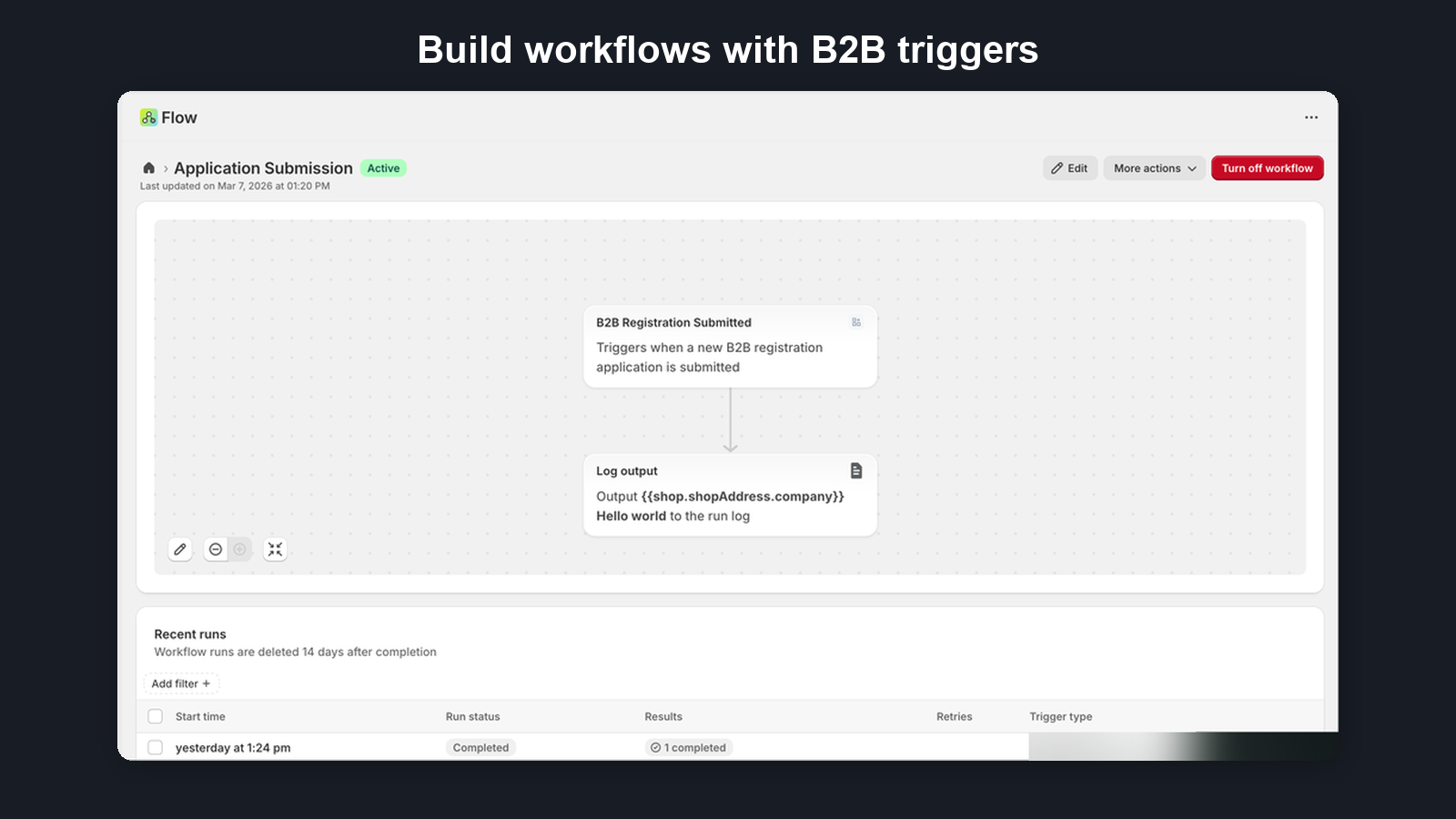
Here are a few common automations you can build with B2B Onboard and Shopify Flow:
- Auto-tag approved customers: Registration Approved trigger → Tag B2B Customer action (tags: "b2b", "wholesale")
- Slack notification on new submission: Registration Submitted trigger → Shopify's built-in "Send Slack message" action
- Auto-approve VIP companies: Registration Submitted trigger → Condition (Company Name is one of your VIP company names, e.g. "Acme Corp") → Approve Registration action
- Auto-reject free email domains: Registration Submitted trigger → Condition (email contains gmail.com or yahoo.com) → Reject Registration action
- CRM sync: Registration Approved trigger → Send data to your CRM via HTTP webhook action
- Send certificates to your ERP: Registration Approved trigger → Condition (
certificateLinksEnabledis true) → Send HTTP request to your own middleware → Add internal note (see Sending certificates to an ERP) - Follow-up reminder: Registration Submitted trigger → Wait 48 hours → Condition (status is still pending) → Send email reminder to merchant
Build workflows in the Shopify Flow editor: go to Settings → Flow in your Shopify admin.
Data Shared with Flow
On every plan, Flow trigger payloads include application metadata: IDs, company name, contact name, form, timestamps, and status-related fields such as the reviewer and a rejection reason.
On the Growth and Pro plans, payloads also carry the applicant’s contact email, tax ID and its check result, the delivery country, and every answer on the form, including addresses and phone numbers (see Trigger Fields). On Free and Starter, nothing beyond the metadata is sent.
Uploaded files are never sent: file questions carry only the file names. On Growth and Pro, when you turn on certificate download links (Settings → Automations), the Approved trigger carries a time-limited link per tax certificate, and anyone with the link can download that file until it expires.
The Registration Quarantined trigger shares no applicant data on any plan: only IDs, timestamps, the names of the spam checks that flagged the submission and a link to review it in the app. Restored and Released follow the same rules as the other registration triggers.
The Certificate Updated trigger shares a certificate’s status, expiry date and covered states on every plan. No document, file or content read from the certificate is ever sent to Flow.
The Tax Exemption Updated trigger shares the exemption basis, where it is set, and the Shopify exemption codes applied, removed and remaining on every plan. It never sends a tax ID or certificate content.
The Credit Updated trigger shares a company’s credit limits, payment terms and credit and guarantee statuses on every plan. The Agreement Signed trigger shares the agreement version and signing facts (when, how, and whether it was before approval). Guarantor and trade-reference details, signatures and documents are never shared.
You decide where your workflows send this data. If a workflow forwards it to another app or system (an email, a spreadsheet, an HTTP request), that destination receives the applicant’s answers, so only connect services you trust with them.
Data is processed by Shopify under their existing privacy terms. For details, see our Privacy Policy.
Certificate download links
Flow can’t move files itself, so B2B Onboard can put a time-limited download link for each tax exemption certificate into the Approved trigger. Your own system (an ERP, or middleware such as Make, n8n or Zapier) receives the links from Flow and downloads the files. Available on Growth and Pro.
Turn it on: go to Settings → Automations, tick Include certificate download links in the Approved trigger in the Works with Shopify Flow card, choose the link lifetime and save. It is off until you turn it on.
- Lifetime: 1 to 168 hours (default 24, which matches the 24 hours Flow keeps retrying a failed HTTP step). Each link can be used any number of times until it expires. A manual re-run of an old Flow run reuses the OLD link, which may have expired by then.
- What revokes links: turning the setting off (links stay dead even if you turn it on again), Revoke all links now on the same card, uninstalling the app, a downgrade below Growth, and GDPR erasure of the customer’s data or of your store’s data.
- Who can see them: links appear in Shopify Flow’s run history for 14 days, where staff with Flow access can see them. Anyone who has a link can download the file until it expires, so only send links to systems you trust.
- Logging: every download is logged, and shown on the application’s timeline as “Certificate downloaded through a Shopify Flow link”.
- Large files: files over 4 MB are served through a short redirect to secure storage; tools that follow redirects (the default in Make, n8n, Zapier and curl
-L) handle this automatically.
Sending the links to your system: in a workflow that starts with the Approved trigger, add a condition on certificateLinksEnabled, then a Send HTTP request action pointed at your own middleware or your ERP’s endpoint, with a body that loops over certificates.items (Flow doesn’t output a whole list or object, so loop with {% for c in certificates.items %}…{% endfor %} as in the ready-made ERP template). Your system then downloads each downloadUrl before linkExpiresAt. The Submitted trigger lists the same certificates without links.
Getting Started with Flow
To create your first workflow:
- Open your Shopify admin
- Go to Settings → Flow
- Click Create workflow
- Select a B2B Onboard trigger to start the workflow
- Add conditions and actions as needed
- Click Turn on workflow to activate
For more on Shopify Flow, see the Shopify Flow documentation.
Testing Your Workflow
The easiest way to test a workflow is to submit a test application through your own registration form:
- Visit your registration form URL on the storefront
- Submit an application using a test email address (e.g., test@yourstore.com) so you can identify and delete it later
- In your Shopify admin, go to Settings → Flow and click on your workflow
- Open the Run history tab to see whether the workflow triggered correctly and review each step's result
If a step failed, the run history shows the error details. Common issues include missing conditions or incorrect action configuration. You can edit the workflow and re-test by submitting another application.